Observability and Logs
Phase Two provides built-in observability for dedicated clusters through the self-service dashboard. Today, this centers on cluster logs: interactive streaming for troubleshooting and retained log files for download.
Visit your cluster in the self-service dashboard and open the Observability tab.
Depending on your plan and feature access, you may see one or both of these views:
- Streaming Logs for live troubleshooting in the browser
- Log Files for browsing retained files and downloading them
Streaming Logs
Use Streaming Logs when you need to investigate a recent issue, narrow down activity to a specific realm, or inspect individual log entries without leaving the dashboard.
If you have not selected a time range yet, the streaming view starts with the last hour of logs.
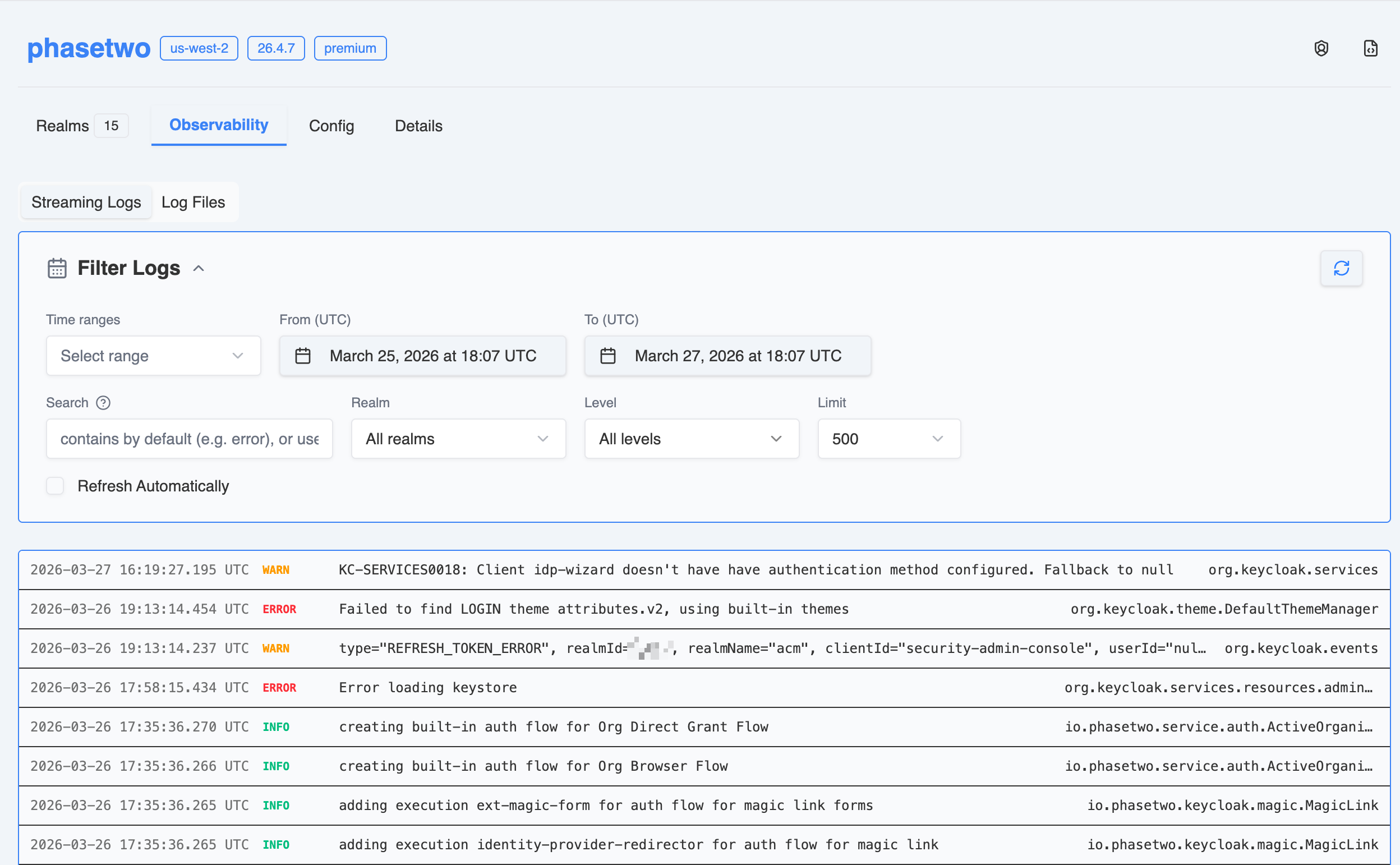
Filters and controls
The streaming view includes a filter bar for narrowing results quickly:
- Time range presets:
Last 15 minutes,Last 1 hour,Last 6 hours,Last 24 hours,Last 2 days,Last 7 days, andLast 30 days - Custom time window: set exact From and To values
- Search: text search with optional LogQL-style line match operators
- Realm: limit results to a specific deployment/realm in the cluster, or view all realms
- Level: filter by
INFO,WARN,ERROR,DEBUG,TRACE, andFATAL - Limit: choose how many rows to fetch per query:
200,500,1000, or2000 - Refresh: rerun the current query immediately
- Refresh Automatically: poll for newer log lines on a timer
All timestamps in the streaming view are shown and queried in UTC.
If you need more history within the selected time window, use Load more at the bottom of the results list to fetch older entries.
Auto-refresh behavior
When Refresh Automatically is enabled, the viewer refreshes for new log lines every 30 seconds. To avoid runaway polling, automatic refresh stops after 5 minutes. It also turns itself off if the browser tab is hidden or unfocused for roughly 30 seconds.
Inspecting a log entry
Click any row in the results list to open the log details drawer. This lets you review and copy:
- the timestamp
- the detected level
- the logger name, when present
- the parsed message
- the full payload or raw log line
This is useful when a single line in the condensed list is not enough and you need the full structured payload or stack trace.
Search syntax and examples
The search field performs a simple contains search by default. For more precision, it also supports the common LogQL line-match operators below:
|=contains exact text!=excludes exact text|~matches a regular expression!~excludes a regular expression
Examples you can paste directly into the search field:
errorto find lines containing the worderror|= "LOGIN_ERROR"to find a specific event or message token!= "health"to exclude routine health-check noise|~ "timeout|connection reset|read timed out"to match several failure patterns at once!~ "GET /health|GET /metrics"to remove common probe traffic|= "LOGIN_ERROR" != "admin-cli"to find login failures while excluding a known source|= "NullPointerException"to surface Java exception lines|= "KC-SERVICES"to narrow results to Keycloak service messages
Use the dedicated Realm and Level filters when possible instead of encoding those constraints into the search box. The search field is best for matching message text and regex patterns in the raw log line.
Log Files
Use Log Files when you need retained logs for offline review, auditing, or support cases.
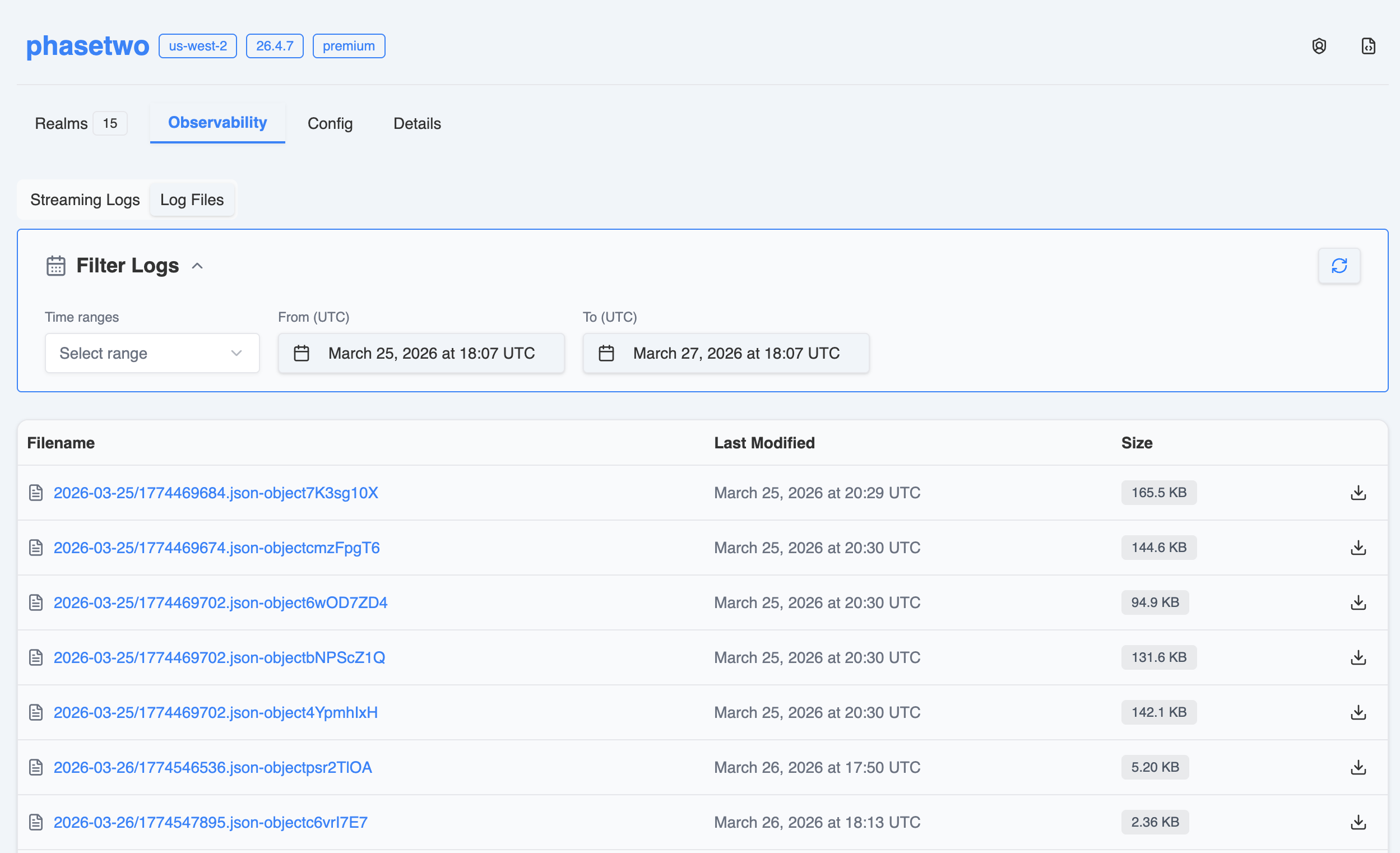
Working with log files
- If no time range is selected yet, the dashboard defaults to the last 7 days
- Quick ranges and custom From / To filters are available here as well
- All timestamps are shown in UTC
- The table lists the file name, last modified time, and file size
- Use the file name or the download action to download an individual log file
If no files appear, widen the time range first and then confirm that you are looking at the expected cluster and date window.
Access notes
If you see a message saying logs cannot be viewed due to lack of permissions, your account does not currently have access to that cluster's logs