IdP Wizard
The Organization IdP Wizard allows members of an organization with the right roles to self-manage their organization's SSO configuration. It provides guided setup for identity providers without requiring direct access to the full Keycloak admin UI.
Depending on how you configure the wizard, organization administrators can use it to set up:
- SAML identity providers
- OpenID Connect identity providers
- LDAP directory sync, when that option is enabled
This page focuses on the self-service organization flow. For the general administrator-focused overview, see Wizards.
What organization admins can do
With the appropriate organization roles, the wizard can be used to:
- Choose a supported vendor-specific wizard or fall back to a generic SAML, OpenID Connect, or LDAP flow
- Pick the protocol when a provider supports more than one option
- Create a new identity provider for the organization
- Review existing configurations from the wizard dashboard
- Validate a newly created SSO connection before enabling it for users
- Enable, disable, or delete an existing connection when the user's roles allow it
This is typically paired with verified organization domains and automatic IdP redirection, so users can be routed to the correct provider during sign-in.
Typical self-service flow
- An organization administrator opens the wizard from the portal or from a time-limited wizard link.
- They choose their provider, such as Okta, Entra ID, or a generic SAML or OpenID Connect flow.
- If the provider supports more than one protocol, the wizard asks them to choose the connection type.
- The wizard walks them through metadata, URLs, certificates, client credentials, and any vendor-specific steps.
- On the final confirmation step, they create the identity provider.
- They use the test sign-in link, when shown, in another browser or incognito window to validate the connection.
- After validation, they can use verified organization domains plus the appropriate login flow to automatically redirect users to that provider.
Supported wizard types
The current wizard implementation includes vendor-specific flows for:
- ADFS
- AWS
- Auth0
- Cloudflare
- CyberArk
- Duo
- Entra ID
- JumpCloud
- LastPass
- Okta
- OneLogin
- Oracle
- PingOne
- Salesforce
There are also generic flows for:
- SAML
- OpenID Connect
- LDAP
Some providers support multiple protocols in the wizard:
- Auth0: SAML and OpenID Connect
- Okta: SAML and LDAP
- Salesforce: SAML and OpenID Connect
The set of vendor-specific wizards available to your users depends on your distribution. Generic SAML, OpenID Connect, and LDAP flows are the baseline option.
Create an IdP Wizard link
There are two main ways to create an IdP Wizard link. Which one you choose depends on how you want to expose setup to your users.
Admin UI
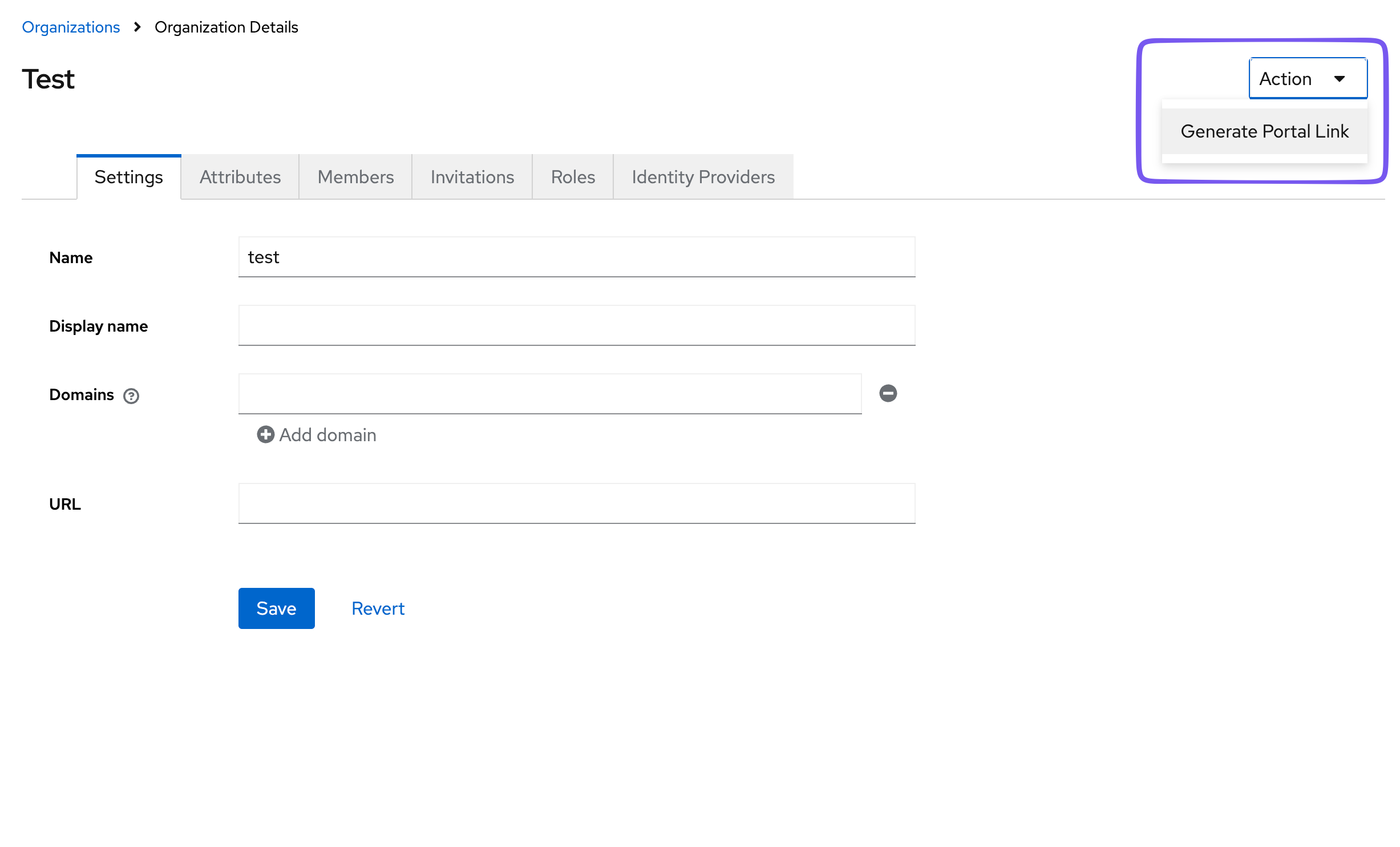
In the Admin UI, in the Organizations tab, when you select an organization, the upper right context menu allows you to select "Create IdP Wizard link". This will create an IdP Wizard link for the default organization user. This is a user that is created by default when the organization is created for the purpose of executing administrative tasks for the organization. It is not associated with a real member of the organization. It has full privileges within the organization, so be careful who and how this link is distributed. It will be active for 1 day following creation.
API
You can programmatically create IdP Wizard links for your users with the API. This allows you to create a link for a specific user. The portal itself will take care of restricting access based on that user's organization permissions. Please refer to the API documentation to create a link for the organization's admin portal. Because this is an expiring link, it is recommended that you do not create the link until it has been selected in your application.
Testing and validating the connection
The final confirmation step in many SAML and OpenID Connect flows now includes a test sign-in link. This gives the administrator a safe way to verify that the new connection works before handing it over to end users.
- Copy the test link and open it in another browser profile or an incognito/private window.
- Do not open the test link in the same browser session as the wizard, or you may be signed out of the setup flow.
- Use the result of that test to confirm that your metadata, certificates, ACS URL, issuer, redirect URI, and mappers are correct.
When the wizard dashboard is enabled, existing identity providers can also show a validation state. New connections may appear as pending validation until that test flow has been completed.
Domains and automatic redirection
The wizard creates the identity provider, but domain-based routing is a separate part of the overall setup.
To automatically redirect users to the right provider during login:
- Set up the identity provider with the wizard.
- Add and verify the organization's email domains.
- Configure the login flow for automatic IdP redirection.
For more on managing identity providers and associating them with organizations, see Identity Providers.
Setting realm attributes for manual control
There are reasonable defaults, but the wizard behavior depends on a small set of realm attributes. See the idp-wizard repository for the source configuration reference.
| Realm attribute key | Default | Description |
|---|---|---|
_providerConfig.wizard.apiMode | onprem | onprem or cloud. onprem uses the Keycloak Admin APIs to set up an Identity Provider, so the user must have the correct realm-management roles. cloud uses the Phase Two Organizations API, so the user must have membership in an organization with the correct organization roles. A "picker" will be shown to the user if they have both and/or roles in more than one organization. |
_providerConfig.wizard.emailAsUsername | false | When building Identity Provider mappers, should the IdP email address be mapped to the Keycloak username field. |
_providerConfig.wizard.enableDashboard | true | Show a minimal dashboard showing the state of the setup. |
_providerConfig.wizard.enableDirectorySync | true | Show Directory Sync section. |
_providerConfig.wizard.enableGroupMapping | true | Currently does nothing. |
_providerConfig.wizard.enableIdentityProvider | true | Show Identity Provider section. |
_providerConfig.wizard.enableLdap | true | Allow LDAP config. |
_providerConfig.wizard.enableScim | true | Allow SCIM config. (not currently used) |
_providerConfig.wizard.trustEmail | false | Toggle trust email in the IdP config. |
_providerConfig.assets.logo.url | none | URL for logo override. Inherited from keycloak-orgs config so we can use the same logo. |
_providerConfig.wizard.appName | Phase Two | App name to appear in the HTML title. |
Practical guidance
- Set
_providerConfig.wizard.apiModetocloudwhen organization administrators should manage their own connections through the portal or a portal link. - Use
_providerConfig.wizard.enableIdentityProvider,_providerConfig.wizard.enableDirectorySync, and_providerConfig.wizard.enableLdapto control which setup paths appear. - Use
_providerConfig.wizard.enableDashboardif you want users to see existing configurations and validation status from within the wizard experience. - Use
_providerConfig.wizard.emailAsUsernameand_providerConfig.wizard.trustEmailto influence the broker configuration that the wizard creates. - Use
_providerConfig.assets.logo.urland_providerConfig.wizard.appNameto white-label the wizard for your own product or customer onboarding flow. _providerConfig.wizard.enableGroupMappingand_providerConfig.wizard.enableScimare present in the configuration model, but they are not currently active setup paths in the wizard UI.